
Alien Barrage — Building an iOS Game with AI

Built with Swift, SpriteKit, and an AI-assisted workflow (Claude + Codex)

This week I released a new game on the App Store: Alien Barrage. It took about three months to build.

While AI handled the coding, the project still required a significant amount of work—planning, designing, testing, managing the AI workflow, and gathering feedback. I started with inspiration from classic arcade shooters, combining elements I liked from different games, adding my own ideas, and letting the gameplay evolve naturally. These are the kinds of games I grew up playing in arcades, so this project was a bit of a throwback.

Platform

I considered using Unity but ultimately chose Apple’s Sprite Kit. I have a bias toward Swift, iOS, and the Xcode environment, and I also wanted to get some experience integrating in-app purchases, as well as Game Center features like leader-boards and achievements. The game is also translated into 14 languages.

Development with AI

My development process relied on a custom workflow using both Claude and Codex. I would switch between them as needed—usually when one hit context limits, or started to drift and could not “get something right”. This approach turned out to have a couple of advantages: it kept costs reasonable, helped reduce the need for long sessions using the same context, and forced more structured planning.

I used AI to generate phase-based planning documents, sort of like an outline. Each phase became a focused unit of work: the AI would implement it, stop, and tell me what to test. Once verified, I would mark the phase complete and merge its corresponding Git branch.
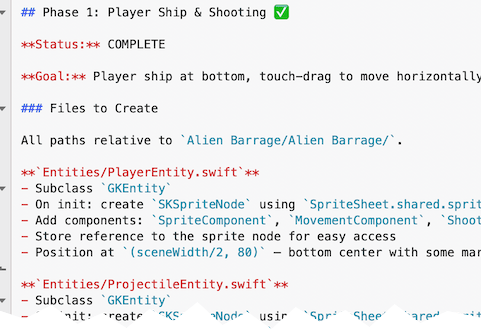
This resulted in a clean development history with meaningful commit messages and a structured progression of features. No code was generated until the whole game was planned. Then the first version of a fully functional game was was made one phase at a time.

AI wasn’t just used for coding. It also played a role in asset generation, image and video processing, and sound integration. I used command-line tools like ImageMagick and ffmpeg (driven by AI) for asset workflows, along with ChatGPT for generating imagery.

AI Workflow (What Actually Worked)

  • Phase-Based Planning Broke development into clear phases using AI-generated outline documents. Each phase had a defined goal, scope, and completion criteria.
  • Model Switching (Claude ↔ Codex) Alternated between models when hitting context limits. This kept costs down and reduced “AI drift” by forcing re-grounding between phases.
  • One Phase = One Git Branch Each phase was developed in its own branch. After testing and validation, it was merged—keeping changes isolated and history clean.
  • AI-Driven Task Execution with Human Checkpoints AI would implement a phase, then stop and provide testing instructions. I validated before marking it complete.
  • Structured Commit History AI generated detailed commit messages, resulting in a readable and useful development timeline.
  • Tight Feedback Loop Frequent testing cycles after each phase prevented large-scale issues from accumulating.
  • Prompt Discipline Clear, scoped prompts reduced wandering behavior and kept outputs aligned with the intended feature.
  • AI Beyond Coding AI was also used for asset workflows (ImageMagick, ffmpeg controlled by AI), image generation (ChatGPT), video generation (Grok), and documentation generation (jazzy docs controlled by AI).
  • Role Separation Treated the setup as pair programming: I handled design, planning, project direction, and managing the AI workflow, while AI handled execution.

Me vs. Me + AI

Realistically, I wouldn’t have had the time to build this game on my own.

AI has made it possible to take on larger and more complex projects without getting bogged down in low-level implementation details. If you think of it as pair programming—“Arnold and the AI”—my role was design, planning, project direction, and managing the AI workflow, while AI handled execution.

That combination is effective.

There’s a lot of concern about what AI means for the future of programming, but my experience has been the opposite. Pairing real-world development experience with AI tools feels like a strong advantage.

Cross-Platform vs. Native Development

I originally leaned heavily into cross-platform development—starting with Xamarin around 2015, with years of Adobe AIR before that, then moving through React Native and .NET MAUI. The main advantage was always efficiency: one codebase, one skill set, two or more platforms.

But in the age of AI-assisted development, that tradeoff looks different.

Recently, I’ve been building native apps in Swift and Kotlin—even in areas where I wasn’t deeply experienced—and still producing complex, production-quality results with AI. Given that, native development has become far more appealing.

My AI Coding Journey

I started experimenting with AI coding tools in 2025, using Codex and later Claude.

Since then, I’ve:

  • Rebuilt my Xamarin-based iOS app TimesX in Swift
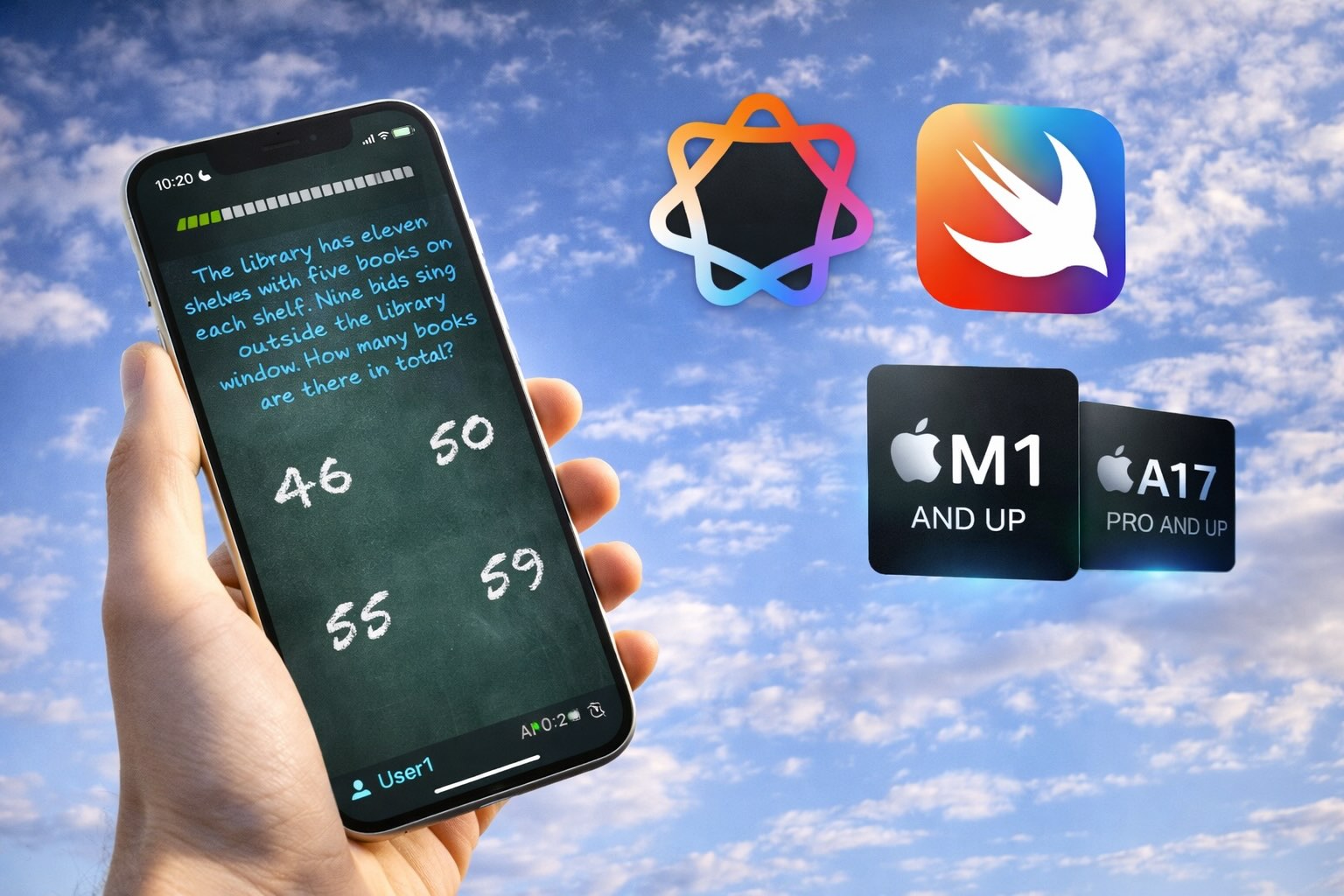
  • Added Apple Intelligence-powered content generation into TimesX for iOS devices that support it
  • Replaced the original Xamarin app on the App Store with the Swift Native
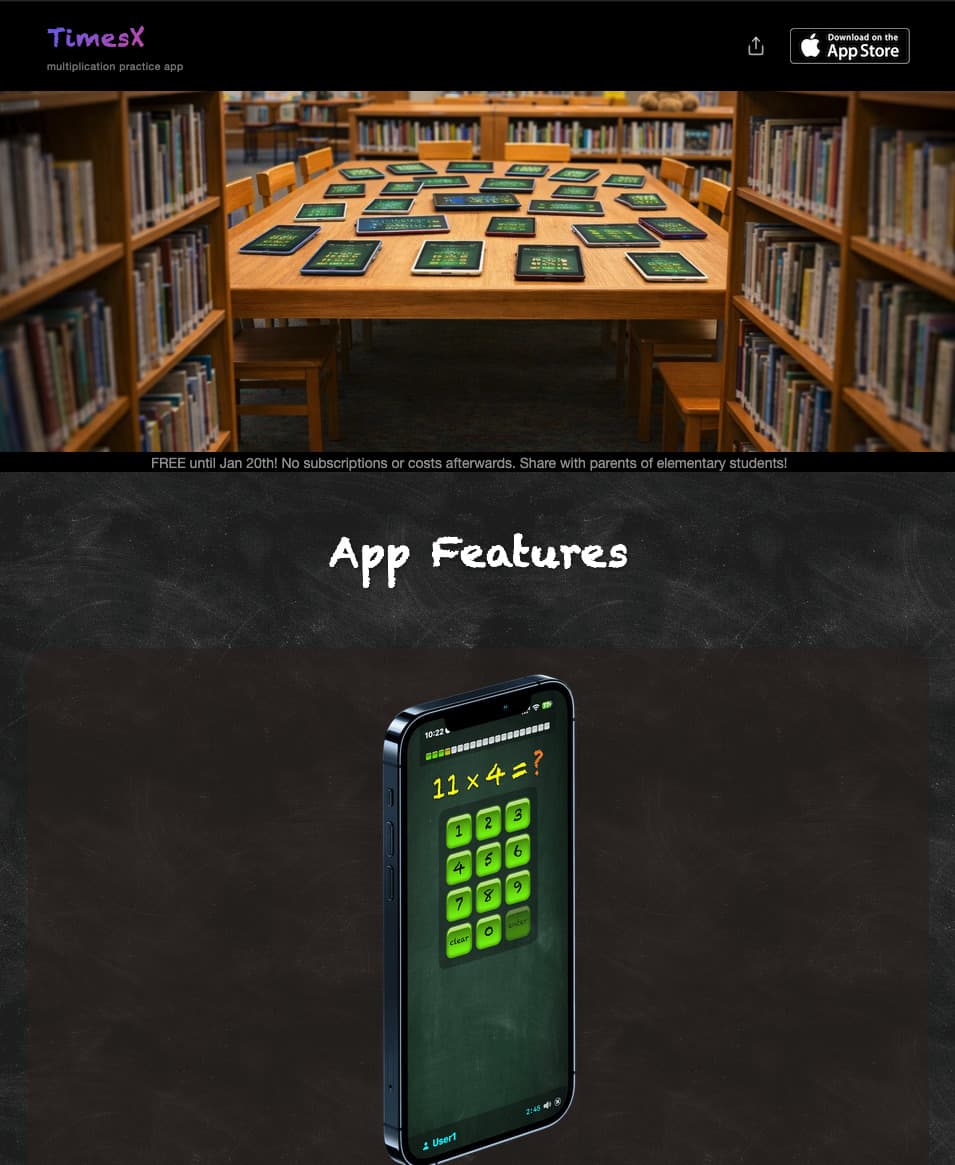
  • Built a supporting website
  • Created a native Android version (optimized for Chromebooks)
  • Developed a Swift/SpriteKit game Alien Barrage
  • Made a Website for Alien Barrage
  • Worked on several smaller projects, including Apple TV apps

In just a few months, I’ve been able to create a significant amount of code that would have taken much longer otherwise.

I’ll admit it—I’m hooked on vibe coding 😊
Advanced FFmpeg in plain English using Claude

FFmpeg is one of those tools everyone knows is powerful, but can be complicated to use. It can do almost anything with video, but the learning curve is steep, and the syntax is unforgiving. Even after years of using it, I still find myself searching for examples or reusing old commands.

Recently, I experimented with using Claude as a kind of “translator” between what I want to do in plain English and what FFmpeg actually needs. The result was surprisingly effective.

The Problem

I had a simple goal, at least conceptually:

  • Take a screen recording of my iOS app
  • Turn it into a square video for Instagram
  • Use a slow-moving 4K cloud video as a background
  • Speed up both videos
  • Center the app video with padding
  • Add a QR code in the bottom corner linking to the App Store
  • Output a single, Instagram-ready MP4

The Approach

Instead of building the FFmpeg command myself, I described the entire process in plain English to Claude and let it handle the mechanics:

  • Trim the background video to skip the black frames at the start
  • Resize it slightly larger than the app video to allow padding
  • Match its duration to the foreground video
  • Speed everything up 2×
  • Center the app video both vertically and horizontally
  • Overlay a QR code in the bottom-right corner with padding
  • Name the output file

What stood out immediately was that Claude didn’t just generate a command—it ran and verified the output. If multiple steps were needed, it handled them without me having to reason about intermediate files or filter chains.

The Result

Less than a minute later, I had exactly what I wanted:

  • A square video
  • Animated cloud background
  • App video perfectly centered
  • QR code placed cleanly with spacing
  • Ready to upload to Instagram

I previewed it in VLC, and everything matched the mental image I had when I wrote the prompt.

Why This Matters

I’ve tried doing this same task in traditional video editors like iMovie, and ironically, it was harder. Tools with visual timelines can struggle once you step outside their expected workflows.

What made this interesting wasn’t just that AI “saved time.” It removed friction from a task that usually discourages experimentation. I didn’t have to remember FFmpeg syntax or worry about getting one parameter wrong—I could focus entirely on the outcome.

This also wasn’t really “programming” in the traditional sense. It was intent-driven tooling: describing a result and letting the system figure out the steps.

Takeaway

If you already know what FFmpeg can do but avoid it because of complexity, pairing it with an AI assistant like Claude is a game changer. It lowers the barrier without limiting capability—and it encourages you to try things you might otherwise skip.

Hopefully this opens up a few ideas for how you might use AI tools in your own workflows, even outside of coding.

TimesX 2026, now with AI

What’s New?

A decade after TimesX was first released, the 2026 version receives a full rewrite in native Swift, along with a major new feature: AI-generated word questions.

There is a clear industry trend toward empowering handheld devices with artificial intelligence, visible across personal computers, phones, and wearables such as Meta glasses. Apple began including NPUs (Neural Processing Units) in its chips starting with the M1 (Macs and iPads) and later the A17 Pro (iPhone 15 Pro). This enabled new AI capabilities on iOS devices—such as face detection and image classification—but also introduced support for an on-device Large Language Model (LLM ), similar in concept to ChatGPT.

How Does This Affect TimesX?

Since its creation, the app supported only two question types: Multiple Choice and Type the Answer. With the 2026 rewrite, a third question type—Word Questions—has been added.

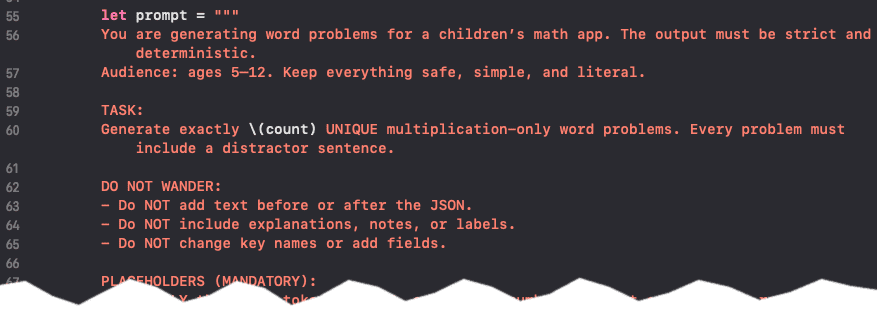
This rewrite made it easier to access Apple’s on-device LLM directly in code. On supported hardware, TimesX can now generate fresh word questions for every quiz using Apple Intelligence. An important benefit for security-conscious parents is that the AI runs entirely on-device and does not require an internet connection. Once installed, TimesX can operate completely offline.

What About Devices Without Apple Intelligence?

For devices that do not support Apple Intelligence, TimesX includes a pre-generated bank of word questions. The AI feature can also be disabled in Settings, in which case the app will always use the question bank instead.

What Else Is New?

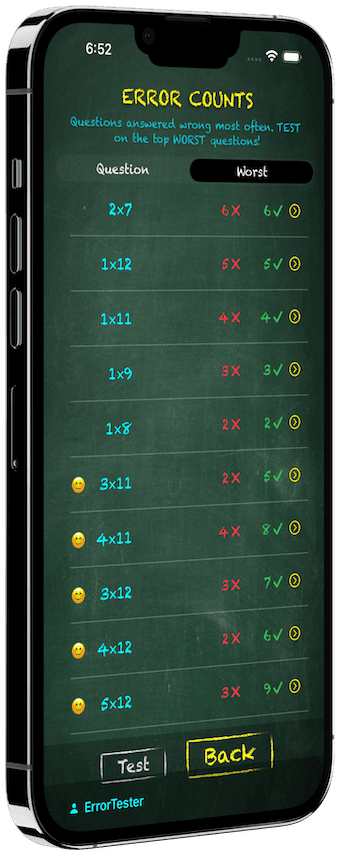
Dozens of refinements have been made across layout, imagery, and usability. Some of the most impactful improvements are on the Error Counts screen.

Imagine a child using TimesX to practice multiplication tables across dozens of short tests each day. The app tracks questions that have been answered incorrectly at least twice and surfaces them on this screen. The update adds visibility into how many times each question has also been answered correctly.

When a child starts a Test from the Error Counts screen, the quiz is built entirely from these problem areas. Over time, as accuracy improves, a happy face appears next to questions that have been answered correctly more often than incorrectly—clear feedback that focused practice is paying off.

Conclusion

If you—or someone you know—has a child in elementary school where multiplication tables are part of the curriculum, TimesX offers a more focused and adaptive practice experience than traditional methods or most existing apps.

More detail on the website: